


Release Notes – October 21, 2025 (ver.2.0.80.0)
Enhanced Admin page
Enhanced dejiren AI Client
Note: The dejiren app (user app) is referred to as the dejiren AI Client.
Enhanced Admin page
| Type | Description |
|---|---|
| Added features | Dr.Sum connector now supports connection with the packaged version (on-premises) *Bridge option subscription required |
| Added features | The MotionBoard Cloud Entry Edition (Datalizer) connector now supports connection with the packaged version (on-premises) *Bridge option subscription required |
| Added features | Added generative AI models for use in VA |
| Added features | Supports Thinking Mode for Google Vertex AI Gemini |
| Added features | Released VA startup log function |
Dr.Sum connector now supports connection with the packaged version (on-premises)
Please see here for details.
The MotionBoard Cloud Entry Edition (Datalizer) connector now supports connection with the packaged version (on-premises)
Please see here for details.
Added generative AI models for use in VA
| Connect to (connection settings) | Added generative AI models |
|---|---|
| OpenAI ChatGPT | gpt-5-codex |
| Anthropic Claude | Claude Sonnet 4.5 |
| Amazon Bedrock Anthropic Claude | Claude Sonnet 4.5 |
Supports Thinking Mode for Google Vertex AI Gemini
Supports Thinking Mode for Google Vertex AI Gemini, which improves the ability to process complex tasks.
By enabling Thinking Mode, you can expect to improve the accuracy of your answers to complex tasks.
When using the thinking mode, the number of tokens (fees) may increase, so you can set a usage limit in the “Thinking Budget.”
The maximum number of tokens (fees) that can be used when Thinking Mode is enabled is determined as follows on the connection settings screen:
| Setting for Thinking Mode | Token limit (Thinking Budget) used by Thinking Mode |
|---|---|
| Disabled | None (because no thinking mode is used) |
| Enabled | Uses the value specified by the user as the upper limit in the “Thinking Budget” setting |
| Dynamic Thinking Mode | The generative AI automatically sets the upper limit. |
Released VA startup log function
You can view the execution status of the VA and force terminate it.
View the execution status
Once VA is executed, you can view the details of the log from the operation menu.
If an error occurs during the processing of a VA procedure, you can check the block where the error occurred and the error message all at once on the log details screen.
Forced termination
You can “Force Terminate Execution” for a running VA from the operation menu.
(*Excluding items such as “Multiple-choice Question” that are waiting for action by the VA executor.)
Enhanced dejiren AI Client
| Type | Description | Web | Desktop App | Smartphone App |
|---|---|---|---|---|
| Version | 2.0.331 | 2.0.408 | ||
| Added features | Added a new color theme to the dejiren AI Client screen. | ✔ | ✔ | ✔ |
| Added features | You can now select the display size of your avatar image. | ✔ | ✔ | ✔ |
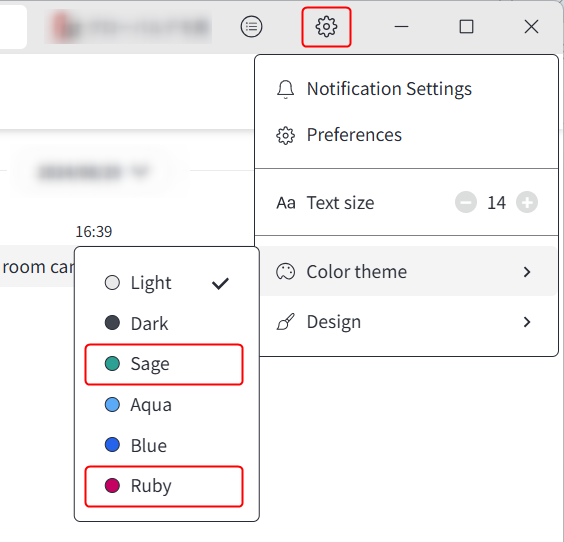
Added a new color theme to the dejiren AI Client screen.
Added “Sage” and “Ruby” to the color themes that can be set from the gear icon in the top right corner of the dejiren AI Client screen.
You can now select the display size of your avatar image.
“Avatar (list screen)” and “Avatar (posting mask)” have been added to the design settings that can be configured from the gear icon in the upper right corner of the dejiren AI Client screen.
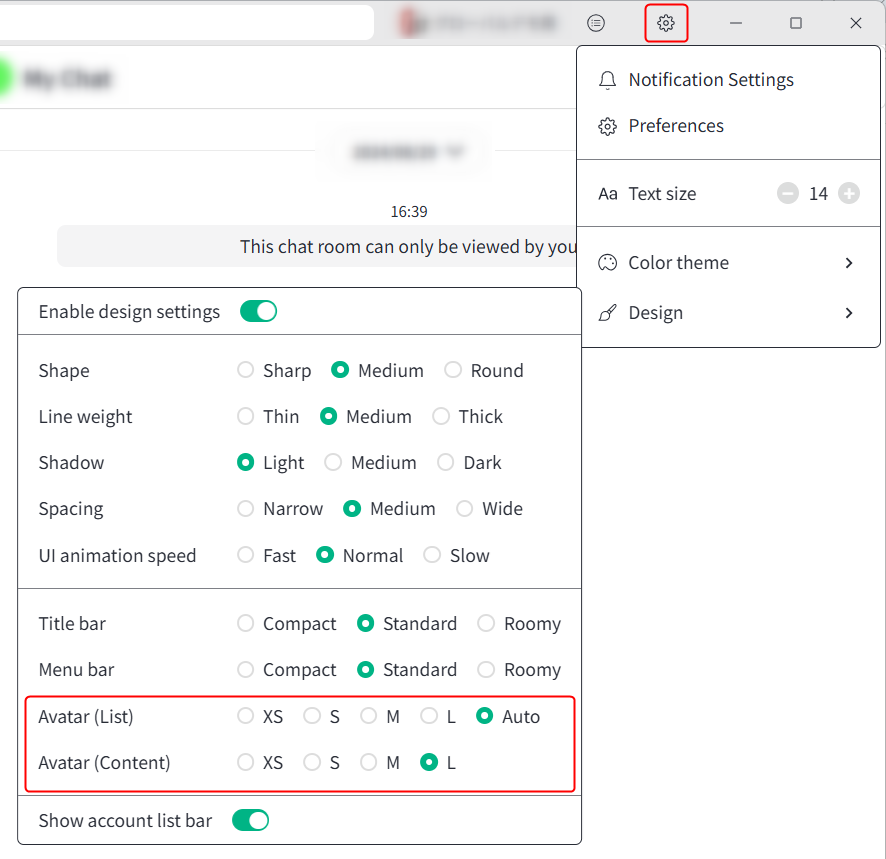
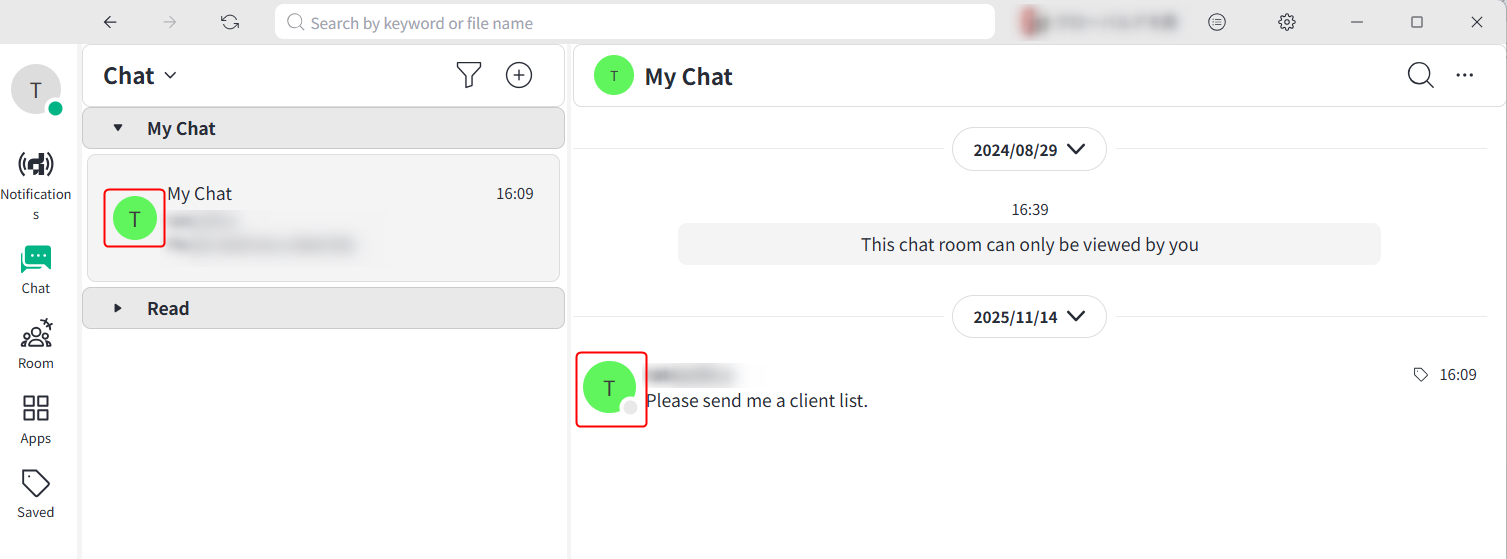
You can change the size of the avatar image displayed in the list on the left and on the posting screen on the right.
In addition, minor bug fixes and other operational improvements have been implemented.